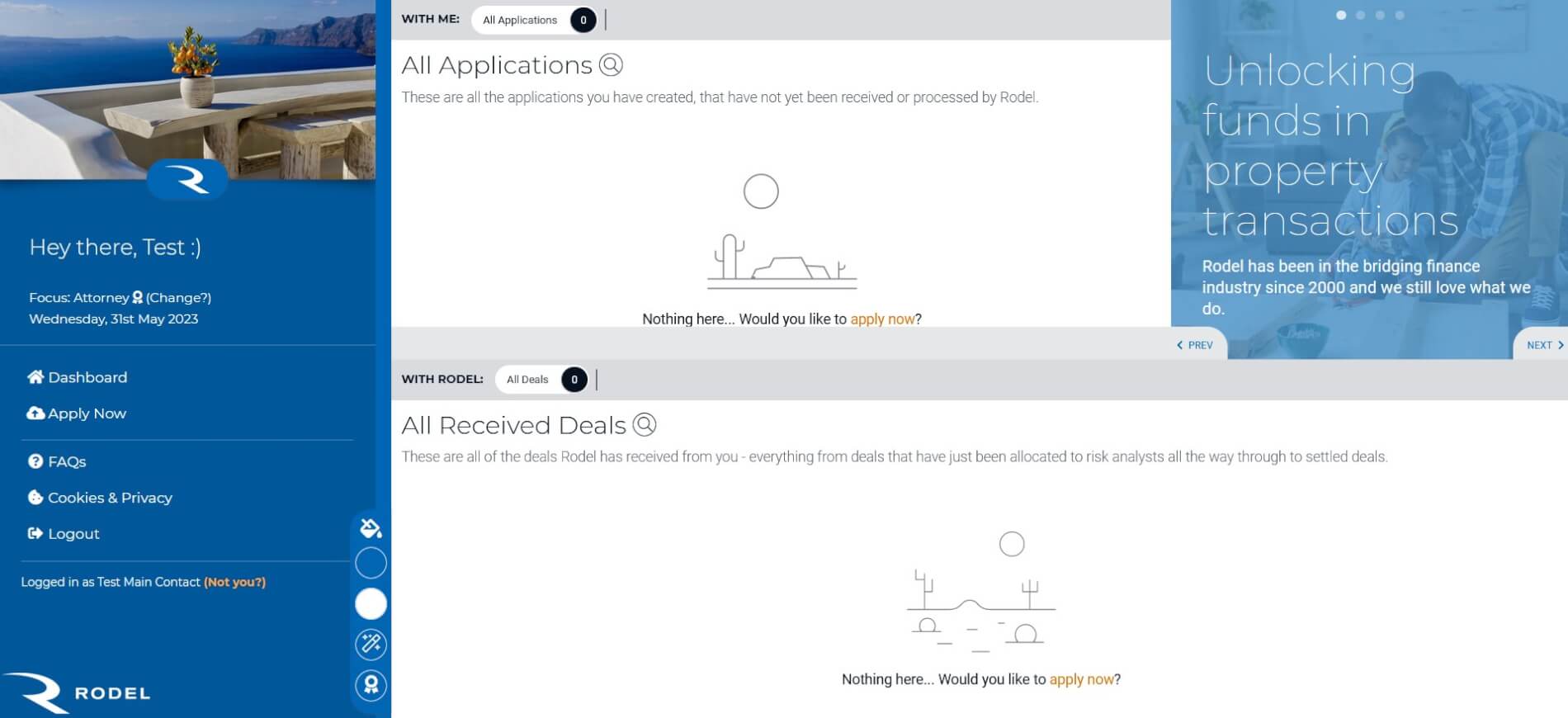
On your portal dashboard, click on Apply Now and a window will appear.
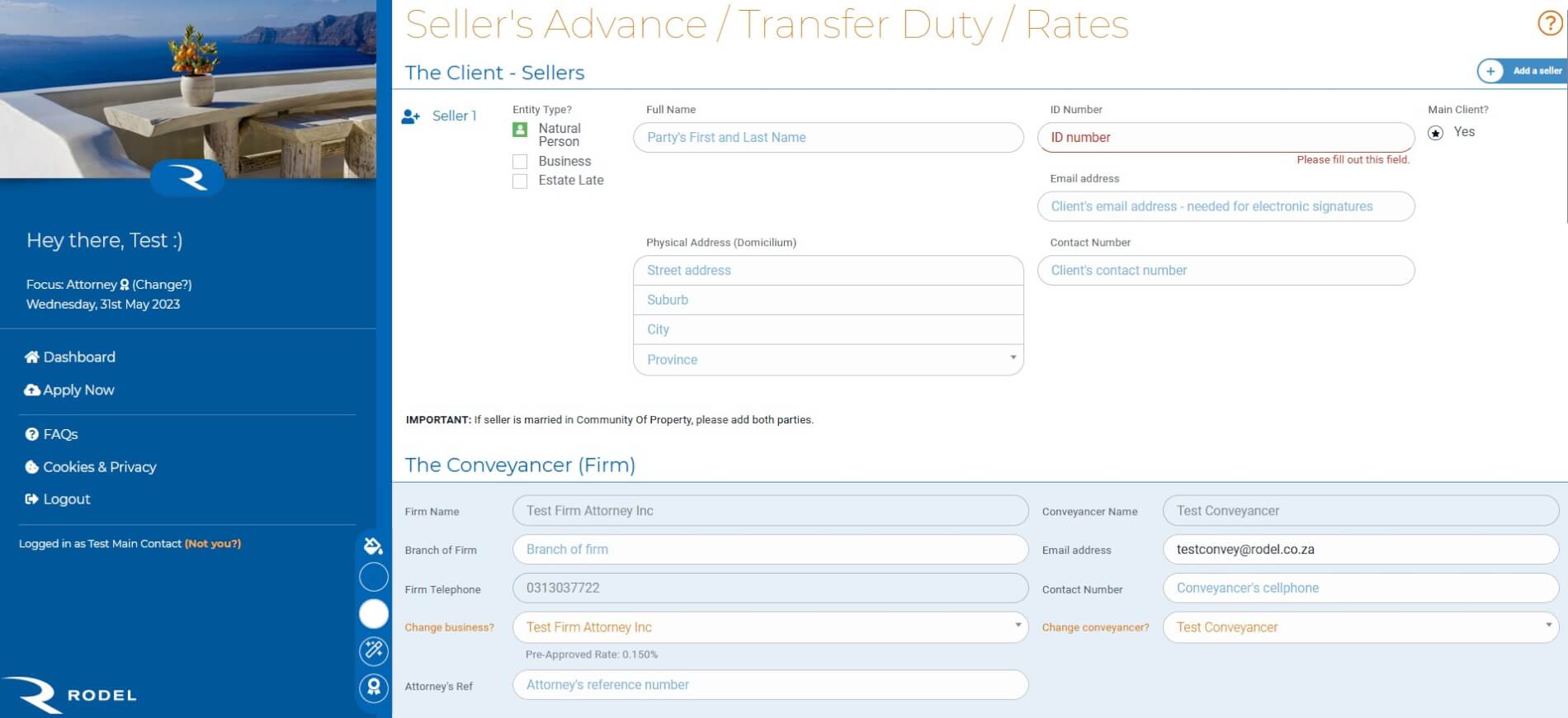
Select the type of finance you would like to apply for.
A new application form will appear. Populate the form. Information still required will be indicated in red or yellow text.
SAVE AS DRAFT
If you do not want to submit the form just yet, you can click on “Save Draft” at the bottom of the form.
Once you have completed the form and are satisfied with it, click on “Next”.
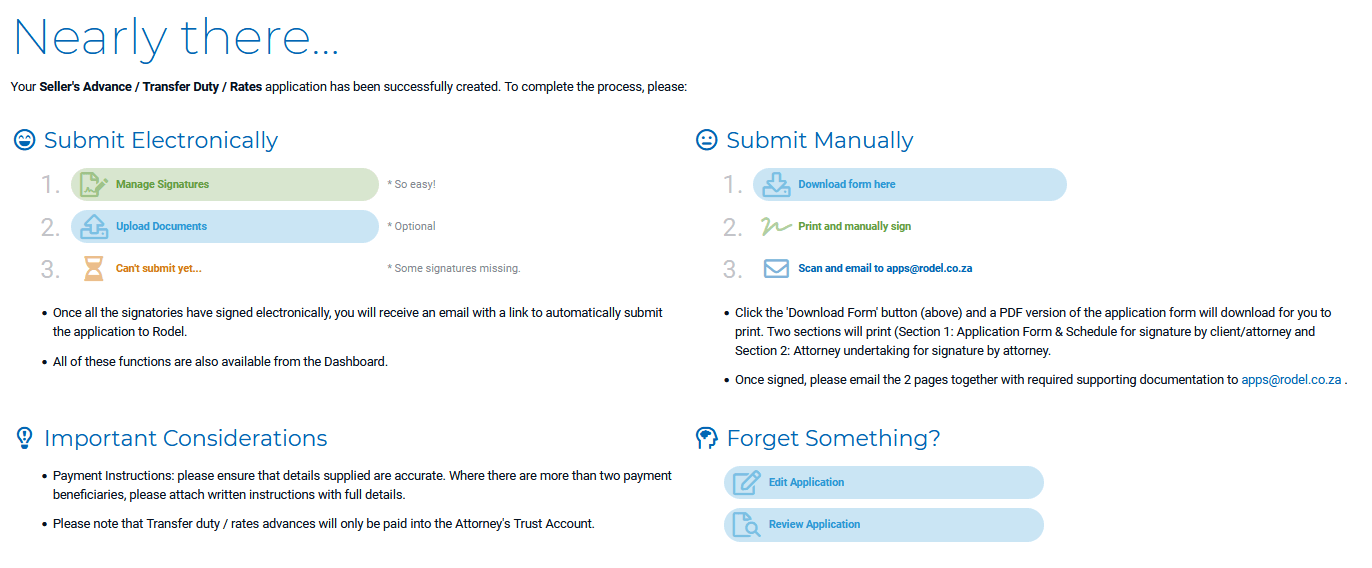
A thank you page will appear giving you various options.
Annotations:
Submit Electronically
Manage Signatures enables you to sign the form electronically (if you are an authorised signatory) and send a signature request to associated parties.
Upload documents
Can’t submit yet… This will change to “Submit to Rodel” when you have completed the other steps and are ready to submit your application.
Submit Manually
Download form here enables you to download the completed application form (in PDF format) to print, sign and email it with any supporting documents to: apps@rodel.co.za.
Print and manually sign is an instruction to print your form and sign it manually
Scan and email to: apps@rodel.co.za is the final instruction for manual submission. Make sure you include supporting documents.
Forgot Something?
Edit Application will take you back to your application form so you can make amendments.
Review Application enables you to view your application.
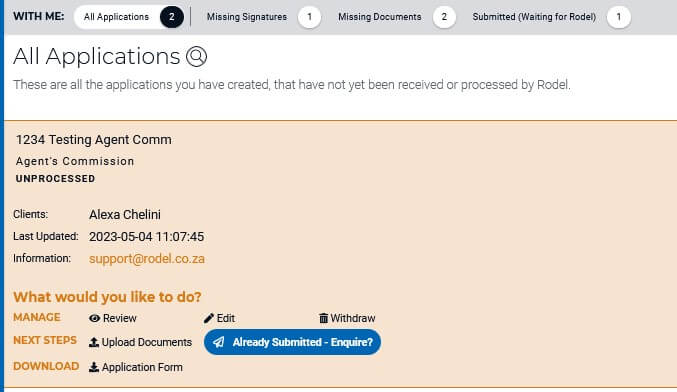
UPLOAD SUPPORTING DOCUMENTS TO A DEAL
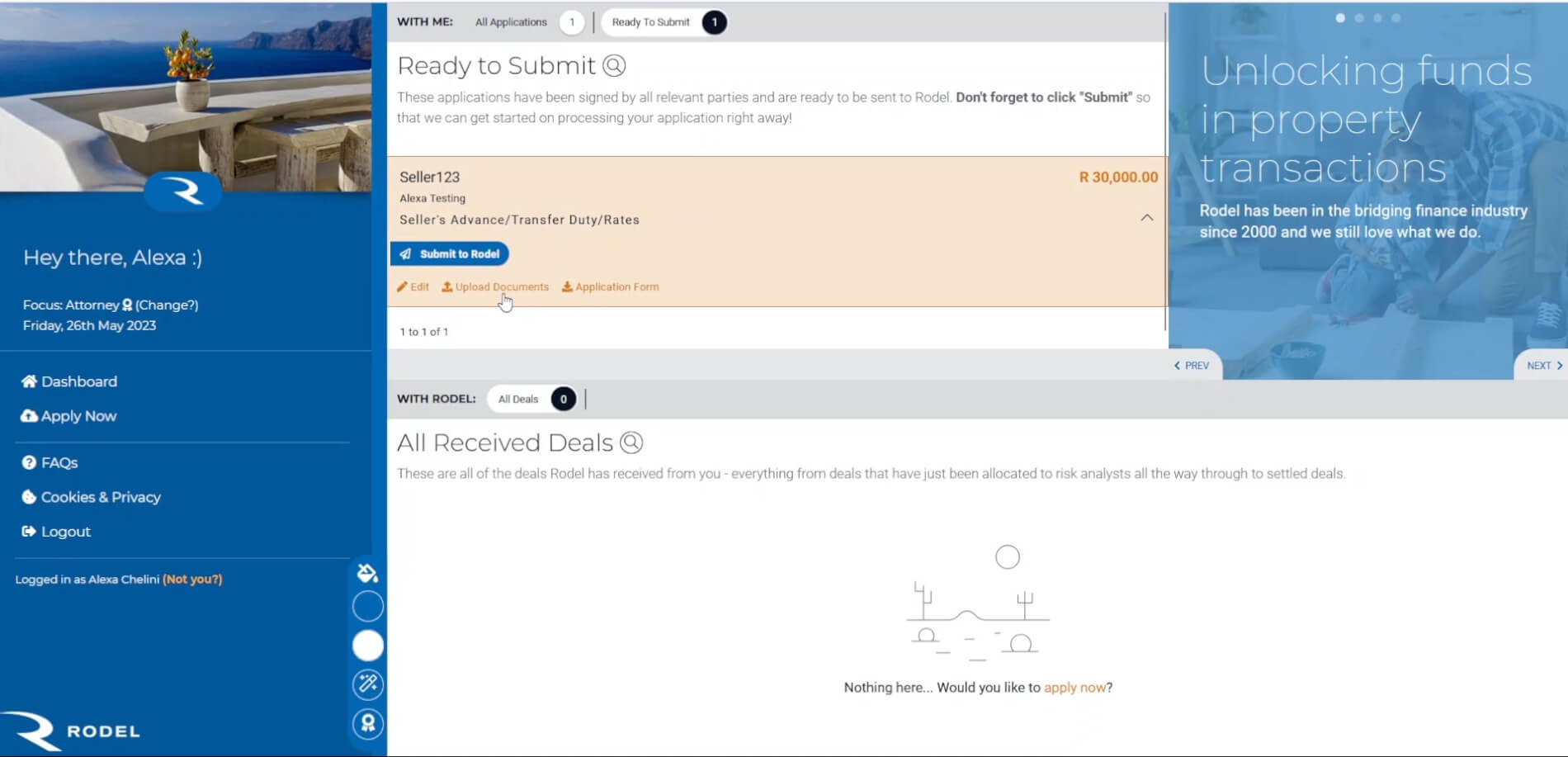
This can be done either when you view the unsubmitted application or after you click on the Next button once you completed an application.
Select the document you want to upload, choose the file, and click Upload Documents.
MANAGE SIGNATURES
This can be done either when you view the unsubmitted application on your dashboard or after you click on the Next button once you filled in an application form.
Once you’ve clicked on Manage Signatures, the below pop-up will appear. This will enable you to sign electronically and send an Undertaking Signature Request or Send Agency Consent Request to the other signatory in the transaction.
The other signatory will receive an email request giving them an option to sign it.
Once they’ve signed it, you will receive an “Application Signed” email.
HOW TO SUBMIT ELECTRONICALLY
Once the document has been signed by all the required parties. The user will receive an email notification. They can either click Submit It! via this email.
Or they can click on “Submit to Rodel” on their dashboard.
WITHDRAW AN APPLICATION
To withdraw an application that has not been paid, go to the All Applications toggle tab.
Click on the deal you would like to withdraw. Then click on Withdraw (bin icon) and follow the steps.
Please note: Should you wish to withdraw an application that has been submitted, you will need to get in touch with the admin person you are dealing with.
We use cookies on our website to give you the most relevant experience by remembering your preferences and repeat visits. By clicking “Accept”, you consent to the use of ALL the cookies.
This website uses cookies to improve your experience while you navigate through the website. Out of these, the cookies that are categorized as necessary are stored on your browser as they are essential for the working of basic functionalities of the website. We also use third-party cookies that help us analyze and understand how you use this website. These cookies will be stored in your browser only with your consent. You also have the option to opt-out of these cookies. But opting out of some of these cookies may affect your browsing experience.
Necessary cookies are absolutely essential for the website to function properly. These cookies ensure basic functionalities and security features of the website, anonymously.
Cookie
Duration
Description
cookielawinfo-checbox-analytics
11 months
This cookie is set by GDPR Cookie Consent plugin. The cookie is used to store the user consent for the cookies in the category "Analytics".
cookielawinfo-checbox-functional
11 months
The cookie is set by GDPR cookie consent to record the user consent for the cookies in the category "Functional".
cookielawinfo-checbox-others
11 months
This cookie is set by GDPR Cookie Consent plugin. The cookie is used to store the user consent for the cookies in the category "Other.
cookielawinfo-checkbox-necessary
11 months
This cookie is set by GDPR Cookie Consent plugin. The cookies is used to store the user consent for the cookies in the category "Necessary".
cookielawinfo-checkbox-performance
11 months
This cookie is set by GDPR Cookie Consent plugin. The cookie is used to store the user consent for the cookies in the category "Performance".
viewed_cookie_policy
11 months
The cookie is set by the GDPR Cookie Consent plugin and is used to store whether or not user has consented to the use of cookies. It does not store any personal data.